On this page
Language
Org diagrams and team systems
Most requests cross several teams, and each team owns its own design. An org diagram draws each team as one box and connects the boxes. When you raise the traffic, the simulation tells you which team cannot take it, without opening any box.
The syntax is in The system block and Imports. To see a finished org diagram, pick Drone startup (team systems) in the editor's Examples menu.
1. Draw one box per team #
Each team is a system block. Until a team has a design file, give it a
capacity stub: the rate it takes, and the p99 and availability it promises.
title "Drone startup"

shopper "Customer" [Browser]

system frontend "Frontend" @Frontend {
  expose web "Shop"
  capacity { 20k rps p99 300ms availability 99.95% }
}
system orders "Order Processing" @Orders {
  expose api "Orders API"
  capacity { 1.2k rps p99 150ms availability 99.9% }
}
system warehouse "Warehouse" @Warehouse {
  expose stock "Stock API"
  capacity { 3k rps p99 200ms availability 99.9% }
}
system feed "Feed" @Feed {
  expose events "Events"
  capacity { 10k rps p99 50ms availability 99.5% }
}

shopper  -> frontend.web    : HTTPS
frontend -> orders.api      : place order
orders   -> warehouse.stock : reserve
orders   -> feed.events     : order placed

usecase "Buy drone" {
  shopper  -> frontend.web    : open shop
  frontend -> orders.api      : place order
  orders   -> warehouse.stock : reserve
  orders  ->> feed.events     : order placed
  orders  --> frontend        : 201
  frontend --> shopper        : 200
}

traffic {
  "Buy drone" 2k rps
}
expose web "Shop"is the team's entry point. You connect tofrontend.web, never to what is inside the team.@Frontendnames the owning team.- The use case and
trafficsay how requests travel between the teams, and how many.
2. Find the team that cannot keep up #
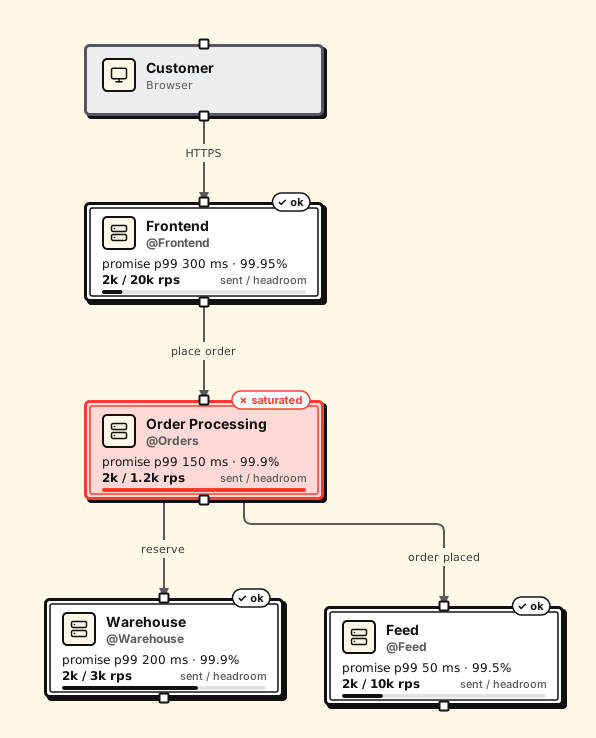
Open the example in the editor. Order Processing is flagged as saturated: it
is sent 2k rps and takes 1.2k. The check system:orders fails, and the
Systems table in the Results tab shows each team's load against what it
takes.
Change the traffic to 1k rps and every team holds. A team above 70% of its
capacity is shown as running hot, which is a warning, not a failure.
3. Link a team's real design #
A stub is a promise someone wrote down. Replace it with from, pointing at
the team's own .proschi file, and map the entry point to one of its use
cases:
system orders "Order Processing" @Orders {
  from "teams/orders.proschi"
  expose api "Orders API" -> "Place order"
}
The team file is an ordinary diagram with its own traffic and requirements. Its requirements become the box's promise. The load you send is added to the team's own traffic, so the simulation names the node that gives out first. The team file's ids stay in its own scope.
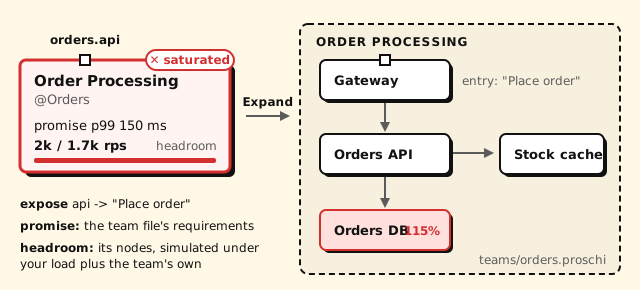
The path must stay inside the project root.
4. Look inside #
- Web editor: Open (or a double-click) shows the team's own diagram and source. Expand unfolds it inside the box. Breadcrumbs lead back.
- Command line:
proschi render org.proschi --expand ordersunfolds a team, and--focus ordersdraws only its design. See Rendering and export. - Claude Code: see Diagrams in the terminal.
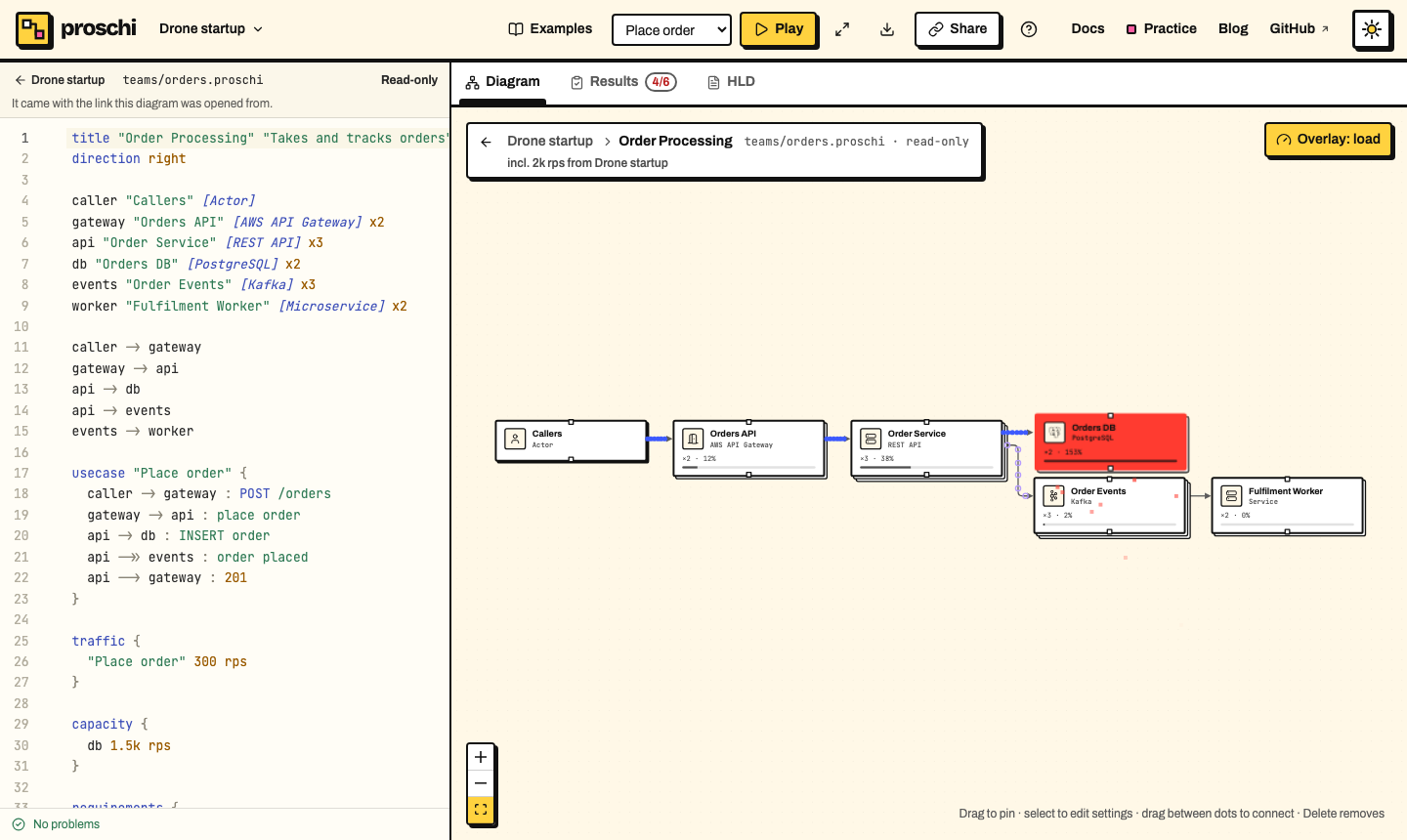
To open the whole org in a browser, with every team file inside the link, run
proschi share-link org.proschi.
5. Use a design from another repository #
A from (or an import) can name a file in a git repository at a tag,
branch or commit:
system warehouse "Warehouse" @Warehouse {
  from "git:github.com/drone-startup/warehouse//design/warehouse.proschi@v2.3.0"
  expose stock "Stock API" -> "Reserve stock"
}
Fetch it, then commit the lock file and ignore the cache:
proschi imports sync
echo ".proschi/" >> .gitignore
git add proschi.lock .gitignore
proschi imports sync is the only command that uses the network. It uses
your own git and credentials. Every other command, and the editors, read
the cached copy. In CI, run proschi imports sync --frozen before
proschi test: it fails instead of changing the lock.
6. Use a saved version from your account #
When a team's design lives in your Proschi account, point from at one of
its saved versions with a cloud: source:
system orders "Order Processing" @Orders {
  from "cloud:orders:latest"
  expose api "Orders API" -> "Place order"
}cloud:orders:2026-11-01pins the box to one version. It never changes, so the org diagram shows the design as it was on that day.cloud:orders:latest, orcloud:orders, follows the newest version the team saved. It never reads the unsaved draft.ordersis the diagram's file name in your account, without spaces.
The Copy reference button in File → Versions… copies the
reference, or a whole system block. The editor fetches the version from
your own account only, and a share link carries it, so viewers need no
account. The command line pins it in proschi.lock: see
cloud sources.
The system block #
system id ["Name"] [@team] [pos x,y] [color c] [.tag] [rank N] {
  …
}
A system goes at the top level or inside a group. system is a keyword only
on a line that ends with {, so a node may still be called system. Inside
the block, one line each:
| Line | Meaning |
|---|---|
from "path" |
The team's design file, found like an import: a local path, git:, https:// or cloud:. |
expose id ["Name"] [-> "Use case"] |
An entry point, and the team's use case it enters. Without a from, leave the use case out. With one, you may leave it out when the team file has a single use case. |
capacity { … } |
A stub for a team with no design file: the rate where it saturates, and its p99 (or latency) and availability. |
- Entry points.
orders.apinames an entry point, with no space before the dot, andordersthe whole box. A step may useordersalone only when the system has one entry point. - Scope. The team file's ids, traffic, requirements and tests never
clash with yours. From outside you reach only exposed entry points, so
web -> orders.dbis an error. - Promise and headroom. The promise is the team's own requirements for the entry point's use case. The headroom is how much more load that use case takes before a node runs hot (70%) and before one saturates (100%).
- Load. What you send to an entry point is added to the team's own traffic for that use case, and the team design is simulated under the sum. Systems that use the same file share that load. In your diagram the system is one hop, with that use case's latency and availability.
- Checks. Each system that gets load has a result
system:<id>. It fails when the system saturates or breaks its SLA. Running hot is a warning. - Nesting. Team files may contain systems. A cycle of
importandfromfiles is an error, and problems in a team file are reported with its path. - Warnings: a
fromand a stub together (the file wins), neither (not simulated), or noexpose.
Go further #
- Remote sources and
syncing: updating a ref, and what
--frozenchecks. - Security model for imports: what Proschi guarantees about imported files.
- Requirements: the team file's requirements become the box's promise.