On this page
Release 0.15.0
Folders and a diagrams sidebar in the Proschi editor
For: You keep more than a handful of diagrams in the web editor, signed in or not.
The web editor now lists your diagrams in a sidebar next to the code, in folders. You can search them, drag them between folders, and jump to any of them with Ctrl+P (Cmd+P on a Mac). The header got shorter too: the editor's menus moved into one File menu, and the site's links left the editor.
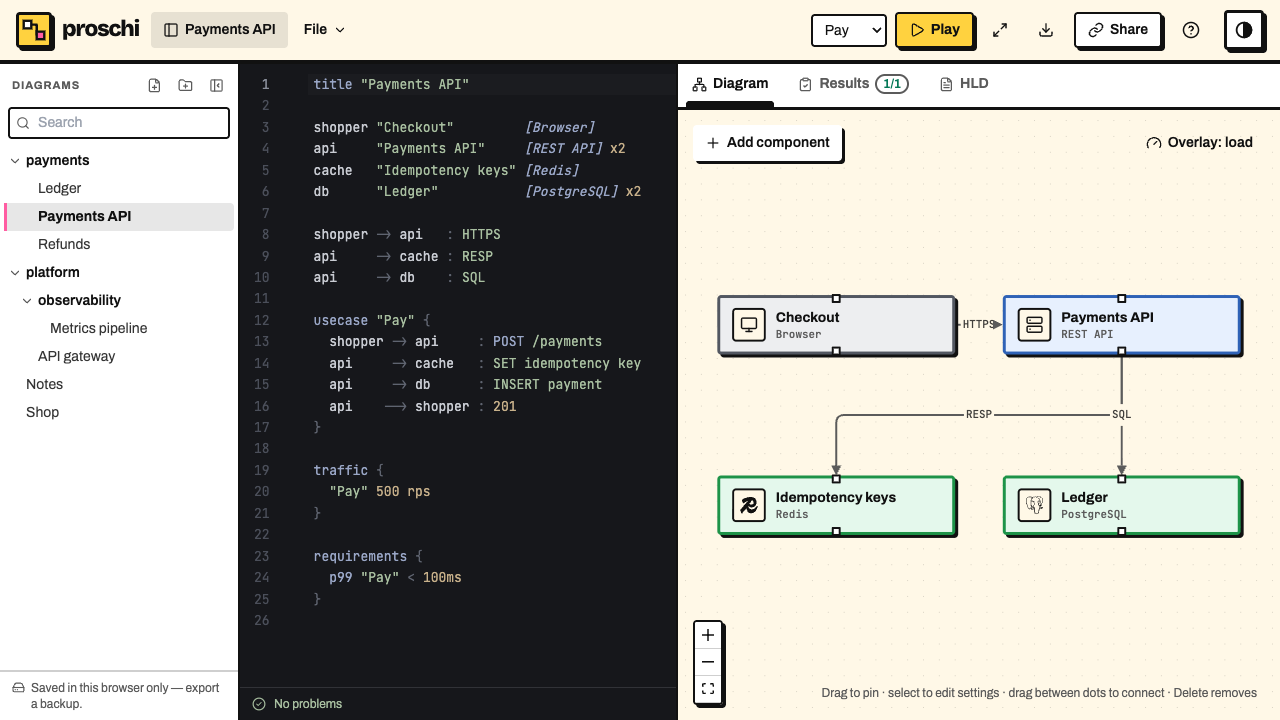
What shipped #
- A sidebar of your diagrams, left of the code. Folders open and close, and each row has a ⋯ menu: Rename file, Move to…, Duplicate and Delete. Folders have New diagram here, New folder here, Rename folder, Move to… and Delete folder. Double-click a name to rename it in place.
- Folders that are part of the file name. A diagram in
paymentsis saved aspayments/api.proschi, so imports between folders work as they do in a repository, and your account keeps the folders when you sign in. - Drag and drop. Drop a diagram or a folder on a folder, on any diagram inside it, or on the empty space below the list for the top level.
- Search at the top of the sidebar, and Ctrl+P to open any diagram by its title or path.
- Where each diagram is kept. Signed out, the bottom of the sidebar says Saved in this browser only, with buttons to sign in and sync. Signed in, a drive icon marks the diagrams that stay in this browser.
- A File menu in place of the old Diagrams menu: New diagram, Go to diagram…, Examples…, Open .proschi file…, Import Mermaid or OpenAPI…, Format code, Versions… and the cloud settings. The site's navigation is gone from the editor's header, and All docs is in the Help menu.
- Room for the code. The hide button at the top of the sidebar folds it into a thin rail, and the editor remembers your choice. On a phone the sidebar opens as a drawer from the title.
What problem it solves #
The old Diagrams menu was one flat list, newest edit first. A diagram you
had not touched in a while sank to the bottom, and there was no way to
group the designs of one system. Now the payments designs sit in a payments folder,
the platform ones in platform, and the search box or Ctrl+P finds any of
them by a word from the title.
Moving a file can break an import that names its old path. When a move or a rename does that, the editor names the diagrams whose imports no longer find their file, so you know which import lines to change. That covers the diagrams that import the moved file, and the moved file's own imports.
How to use it #
- Open the editor. Your diagrams are in the sidebar on the left.
- Press the new folder button at the top of the sidebar, type
paymentsand press Enter. The folder starts with a blank diagram. - Paste the design below into the code pane.
- Drag another diagram onto
payments, or use its ⋯ → Move to…. - Press Ctrl+P (Cmd+P on a Mac), type
payand press Enter to come back to it.
title "Payments API"

shopper "Checkout"         [Browser]
api     "Payments API"     [REST API] x2
cache   "Idempotency keys" [Redis]
db      "Ledger"           [PostgreSQL] x2

shopper -> api   : HTTPS
api     -> cache : RESP
api     -> db    : SQL

usecase "Pay" {
  shopper -> api     : POST /payments
  api     -> cache   : SET idempotency key
  api     -> db      : INSERT payment
  api    --> shopper : 201
}

traffic {
  "Pay" 500 rps
}

requirements {
  p99 "Pay" < 100ms
}
How the editor finds imported files, folders included, is in Where imports are found.
Who it is for #
Read this if you keep more than a few diagrams in the web editor, signed in or not. With an account, the folders sync with the file names to your other devices.
If you work in the command line or in an IDE plugin, nothing changes: your files and folders are already on disk.
Some limits. A folder exists only while it holds a diagram, so a new folder starts with a blank one. Moving a file does not rewrite the import lines that name it: the editor tells you which diagrams to fix, and you change them.